

Settings:
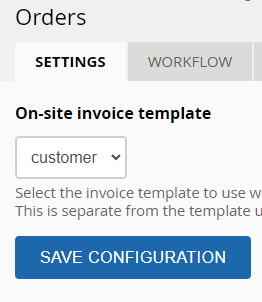
Allows you to select the on-site invoice template you would like to see when viewing invoices on your site.
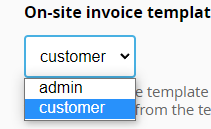
Out of the box, there are two invoice templates, admin and customer. The customer invoice template is the default and will display the invoice in a typical invoice layout, whereas the admin template just shows the fields.
You can add other templates and some templates will be included with modules that expand Ubercart's functionality.
To customise the notification sent to the customer, see Store » Configuration » Checkout » Rules (/admin/store/settings/checkout/rules) to make changes to the email sent after the checkout procedure... See *** to-do - add a link to instructions for customising the rules for "E-mail customer checkout notification" - to-do ***
Workflow tab

For an overview of business workflows see ** to-do - Add link to "eCommerce workflow" page when complete - todo **
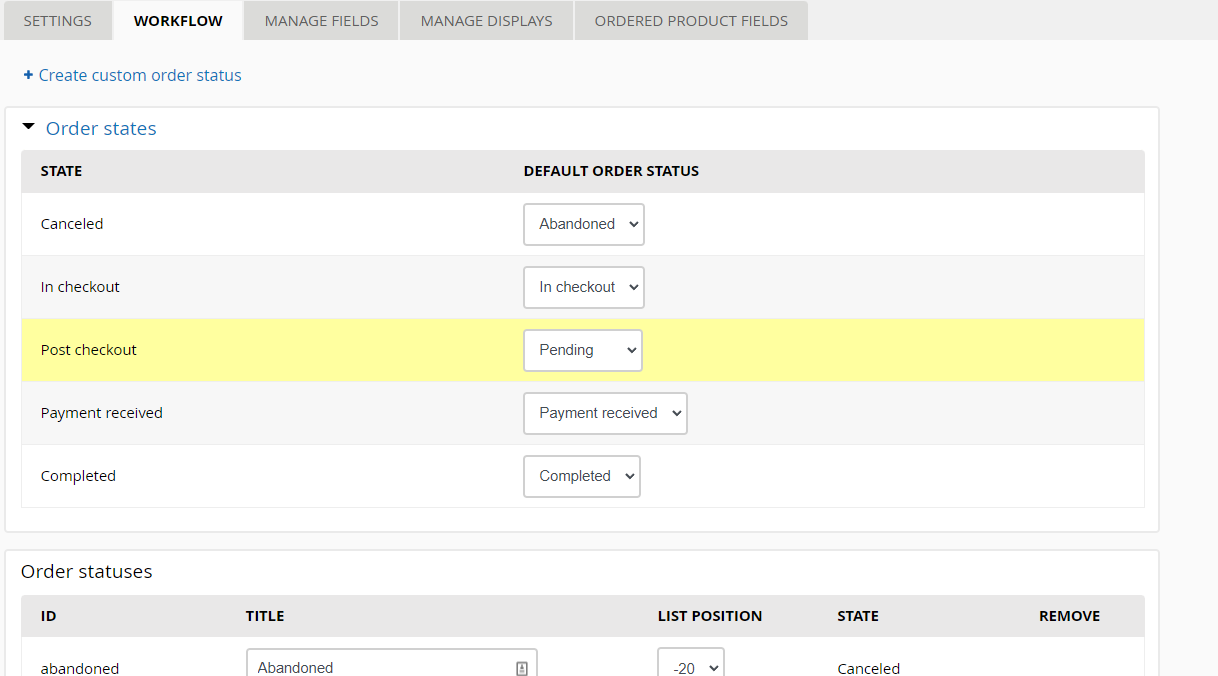
This section lets you view and customize the order statuses available to you when administering an order.
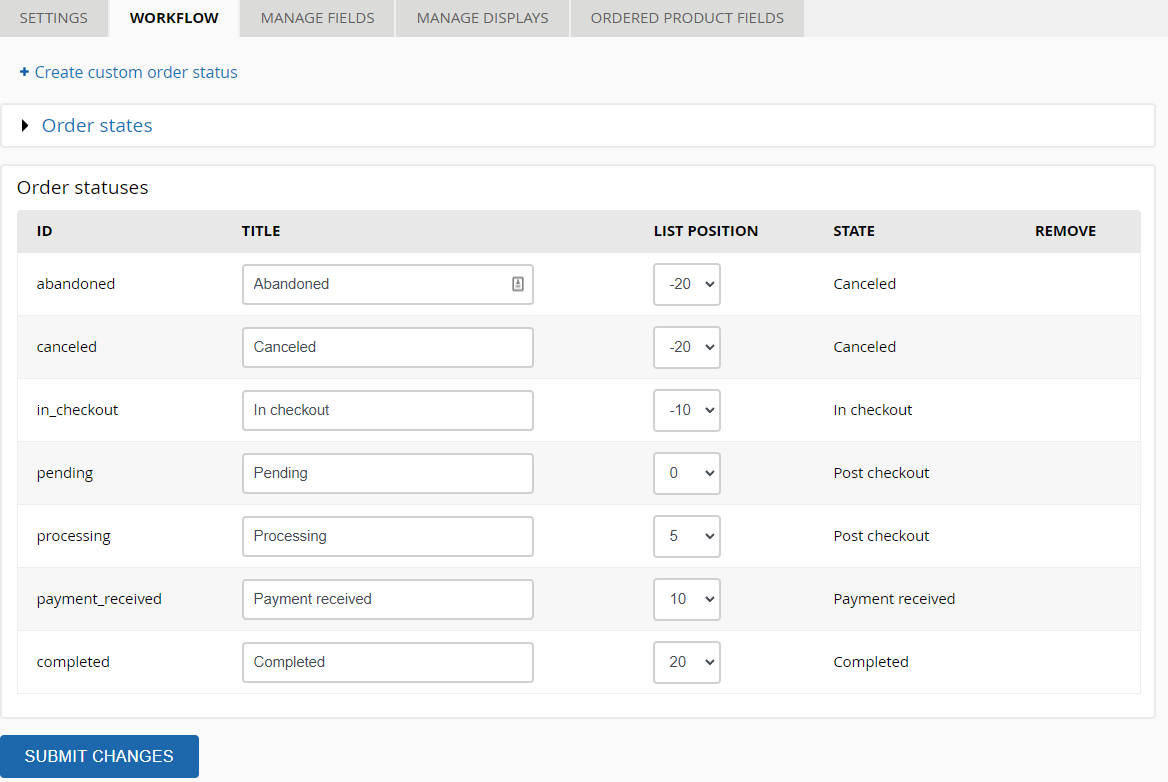
Ubercart's default statuses may be renamed or reordered, and they all correspond to an order state to handle default actions like the creation and checkout of orders from a customer's shopping cart. You may rename the default statuses.
You can create custom order statuses by clicking on "Create custom order status"... this will take you to a new form...
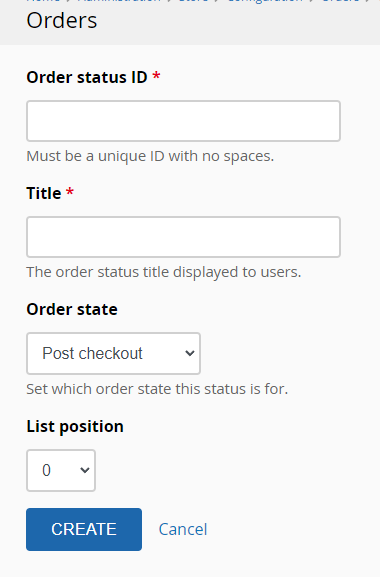
Where you can define additional order statuses for the various states to accommodate your store's particular order workflow.
If you want to adjust the default statuses for the various order states, click Order states to expand the "Order states" section...
*** continue editing from here ***
Manage fields tab
Manage display tab
Tips
When processing orders, it helps to have as much information on the screen as possible. We've tried to help you out by making the forms compact, but we can only do so much. Some themes display everything spread out and just won't accommodate order administration. We recommend using a compact administration theme like Seven so you have maximum space available for viewing and managing your orders.
Also, you may not want your fledgling store to appear so young to your customers. However, as soon as someone checks out with an order number in the single digits, you're exposed. You might consider manually modifying your database to force order numbers to start at a higher value. To see how this is done, please refer to How do I set/reset the starting order number for my store?.